Modifying a PDF in Zotero and keeping the annotations
What this post is about
In this post, I will explain my workflow for modifying a PDF stored as a file in a Zotero library while keeping the annotations. Could this be better? Quite possibly. This is just the way I do it.
Some context (just like recipe websites?)
A document I’ve been reading is neither OCR’ed nor has a table of contents (ToC). This book, reaching almost 600 pages, has been particularly fastidious to navigate around. I remember how I had the same issue with a physics textbook PDF I had in 2024, and how I used JPdfBookmarks to add the ToC myself. I wondered if it’d be possible to update the PDF that was uploaded to a group library and get to keep the annotations. This short post explains how to do so.
Step-by-step
For this demonstration, I’ll use a copy of Alan Turing’s 1952 article “The Chemical Basis of Morphogenesis”.
-
See the underlying PDF file by right-clicking on the Zotero item or PDF that you want to modify:
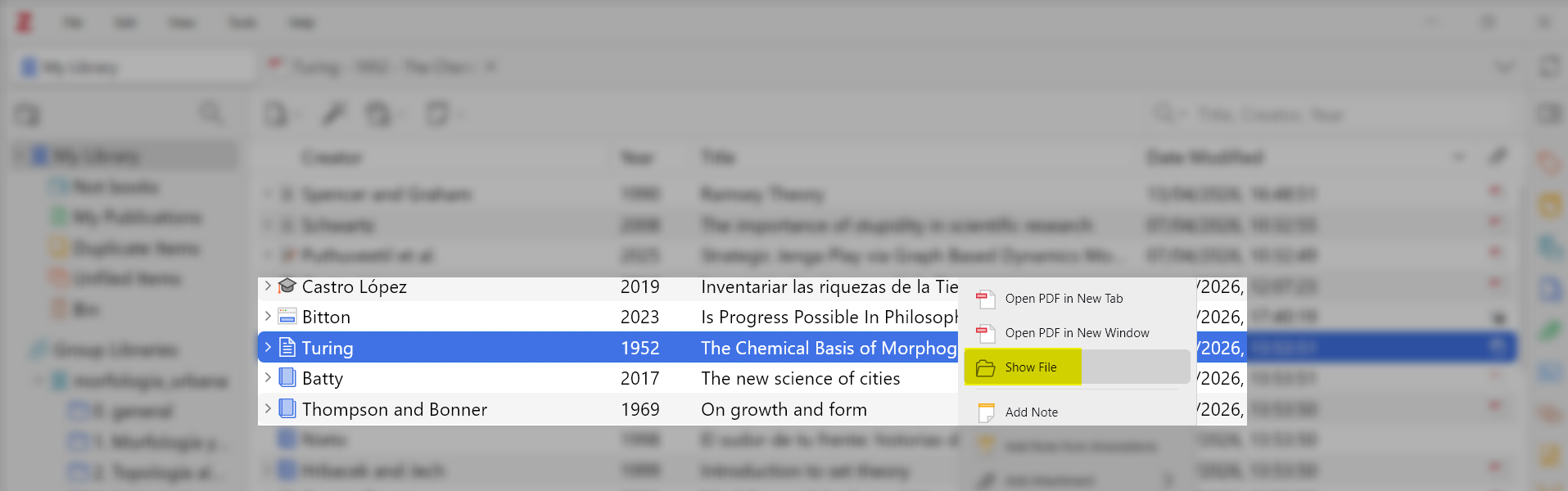
It should open a file explorer window:

-
Download JPdfBookmarks, if you haven’t already.
Note: You may use any program that lets you edit bookmarks/ToC on a PDF; this one just happens to be the one I use since it’s open-source.
-
Copy the file path and open it using JPdfBookmarks or your program of choice.
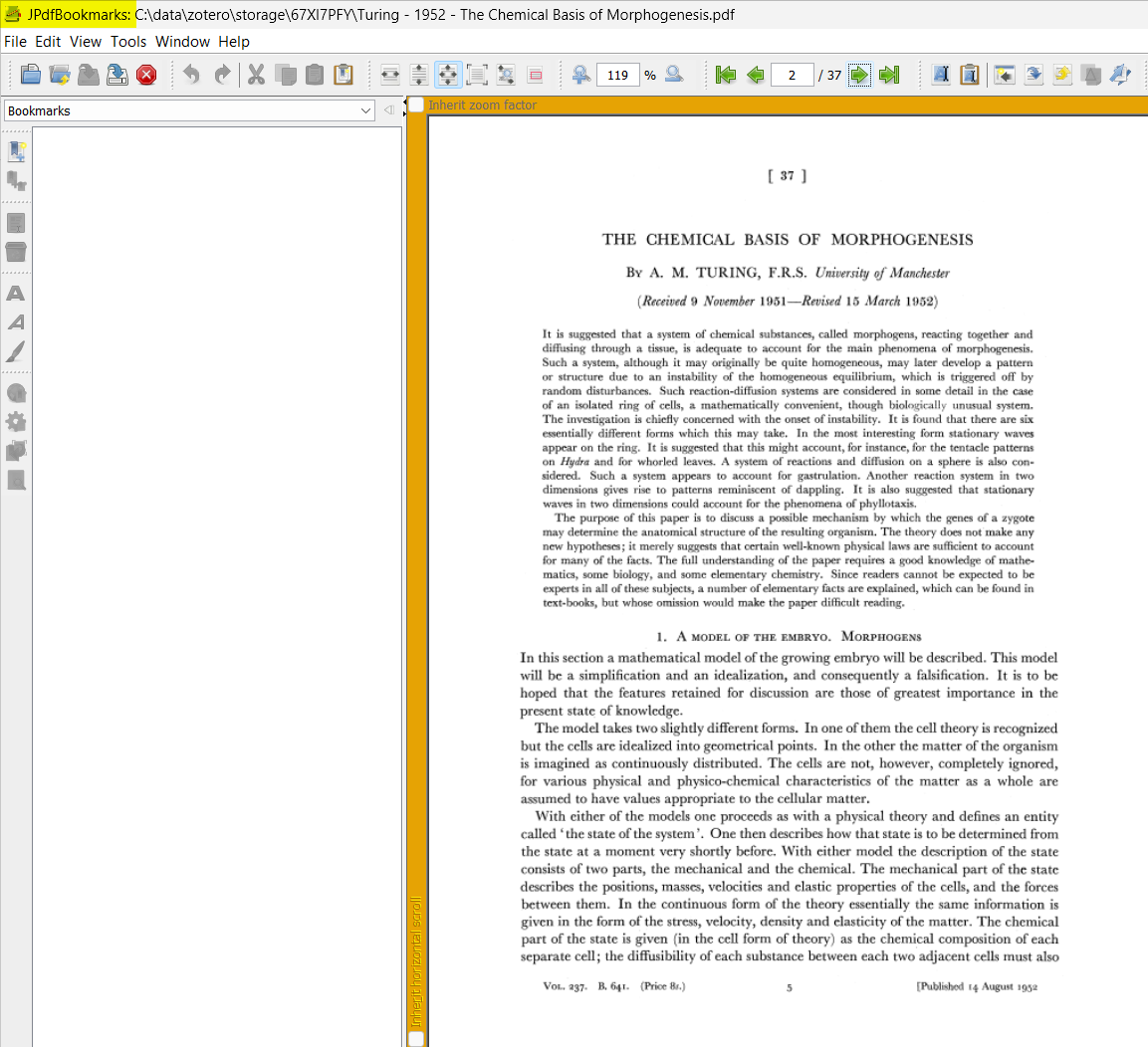
-
Add the bookmarks to the PDF1:
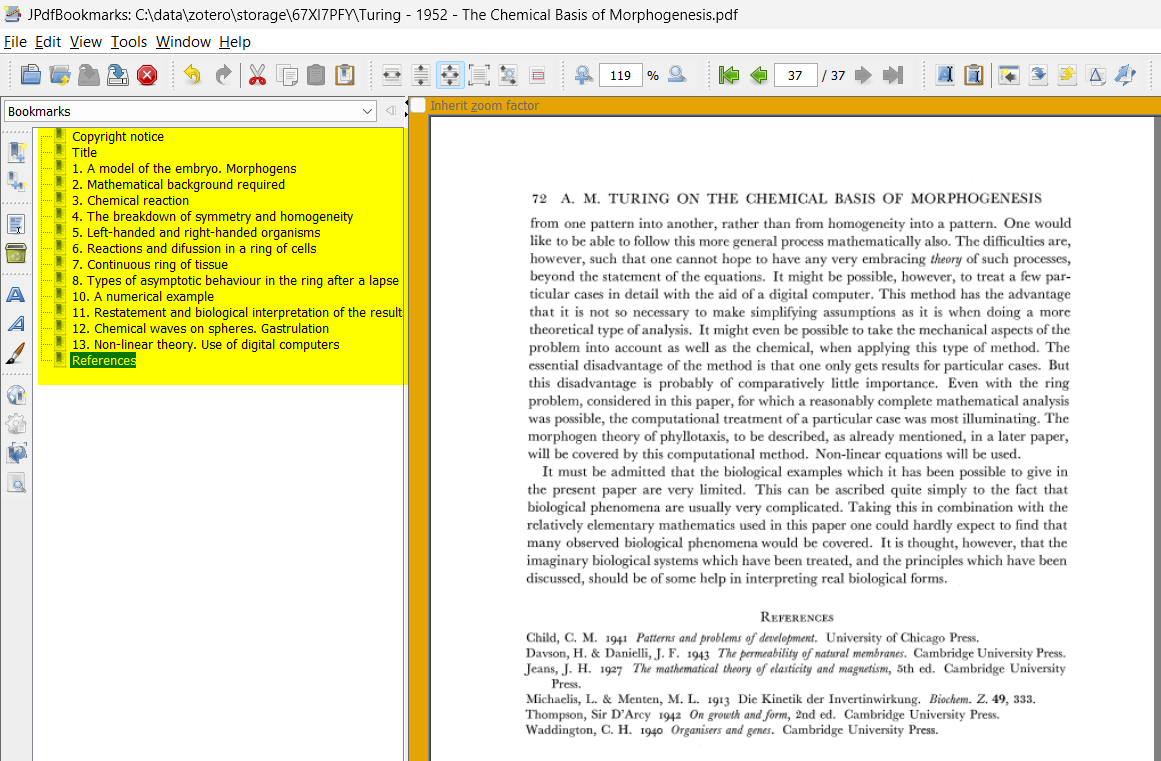
-
Exit Zotero before saving the file. I’ve had some issues with Zotero when I omit this step, especially with files on shared libraries. Admittedly, it might have to do more with Zotero database checks. It’s mostly harmless, but it’s better to err on the safe side, no?
-
Re-open Zotero and check that the file now has a proper table of contents (or an updated one, for that matter).
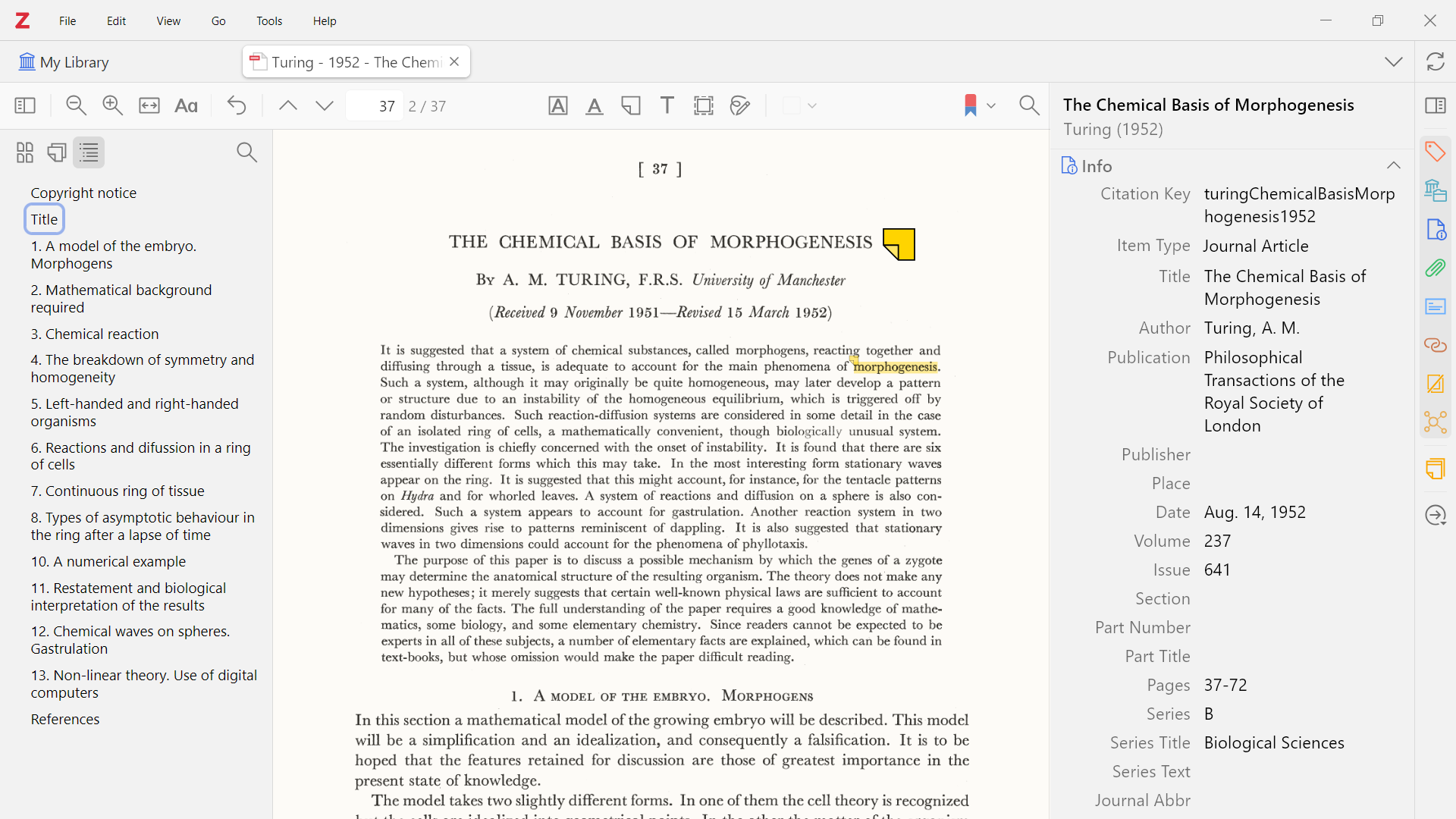
-
And, more importantly, it still has the original annotations.
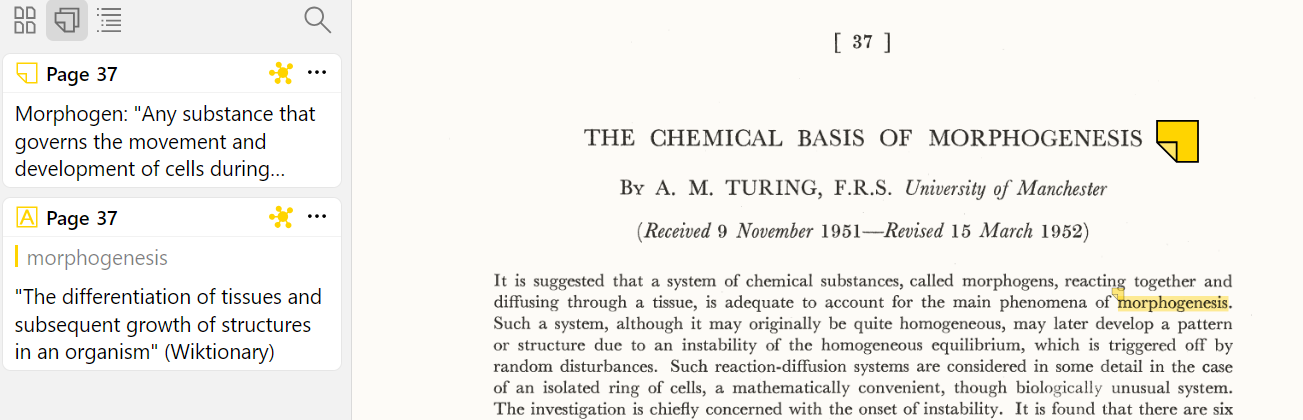
Et voilà !
Disclaimer
If you don’t want to risk it, create a copy and change the filename. You could, for example, append " - Original" to the original file and modify the copy that has the original filename. You want your new file to have the same filename as the original file.
Sources
-
The idea on how to keep the annotations comes from the Zotero forum: https://forums.zotero.org/discussion/104519/updating-a-pdf-keeping-the-annotations#latest
-
How to see the underlying file (instead of saving an annotated copy): https://forums.zotero.org/discussion/104786/exporting-a-clean-pdf
And perhaps some other random internet comments.
-
Incidentally, these are the contents of the jpdfbookmarks bookmarks file I creatd for the PDF of Turing’s 1952 article:
↩︎Copyright notice/1,Black,notBold,notItalic,closed,FitPage Title/2,Black,notBold,notItalic,closed,FitPage 1. A model of the embryo. Morphogens/2,Black,notBold,notItalic,closed,FitPage 2. Mathematical background required/4,Black,notBold,notItalic,closed,FitPage 3. Chemical reaction/5,Black,notBold,notItalic,closed,FitPage 4. The breakdown of symmetry and homogeneity/6,Black,notBold,notItalic,closed,FitPage 5. Left-handed and right-handed organisms/9,Black,notBold,notItalic,closed,FitPage 6. Reactions and difussion in a ring of cells/11,Black,notBold,notItalic,closed,FitPage 7. Continuous ring of tissue/14,Black,notBold,notItalic,closed,FitPage 8. Types of asymptotic behaviour in the ring after a lapse of time/15,Black,notBold,notItalic,closed,FitPage 10. A numerical example/25,Black,notBold,notItalic,closed,FitPage 11. Restatement and biological interpretation of the results/31,Black,notBold,notItalic,closed,FitPage 12. Chemical waves on spheres. Gastrulation/34,Black,notBold,notItalic,closed,FitPage 13. Non-linear theory. Use of digital computers/36,Black,notBold,notItalic,closed,FitPage References/37,Black,notBold,notItalic,closed,FitPage